
Forgot password — how to reset it
Forgot your upmesh password? No problem — you can reset it yourself in just a few steps. All you need is access to the email account you used to register with upmesh.
Resetting your password — step by step
Open the upmesh login page and click on "Forgot password?" below the login form.
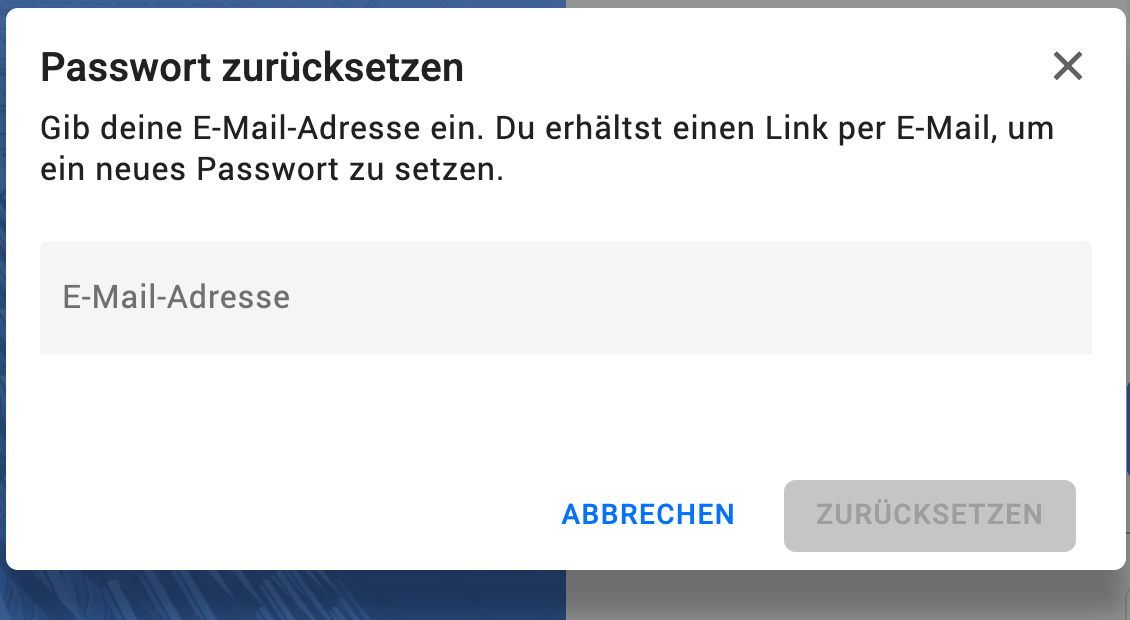
Enter the email address of your upmesh account and confirm with "reset".
upmesh will send you an email with a reset link. This may take a few minutes.
Open the link from the email. You will be directed to the "Set new password" page.
Enter a new password, confirm it, and click on "Set password".
Then log in with your email address and your new password.
Didn't receive an email?
If you haven't received an email after a few minutes, please check the following:
Check your spam or junk folder.
Make sure you entered exactly the same email address that you registered with.
Wait a few minutes — delivery can sometimes be slightly delayed.
Request the reset email again if necessary.
"Account with this email address not found"
If this message appears, there is no upmesh account associated with the entered address. Check the spelling or whether you might have registered with a different email address. If you don't have an account at all, you can register anew directly.
Password changed, but login isn't working?
Pay attention to upper and lower case letters as well as accidentally activated Caps Lock.
If you use the app on multiple devices, log in again on all of them.
If you still cannot get in, contact us via support — we are happy to help you further.
Was this article helpful?
No upmesh account yet?
Try upmesh for free: construction documentation, defects, plans and site diary in one app — in the browser, on your phone and offline.